
 PearPass
How To Sync Vault Between Devices
PearPass uses peer-to-peer technology to sync vaults securely across devices without relying on centralized servers. Thanks to the Pear Runtime, vaults can sync in every direction: desktop to desktop, desktop to mobile, mobile to desktop, and mobile to mobile.
For this example, we'll walk through syncing from a desktop device to a mobile device.
Syncing From Device 1 (Desktop)
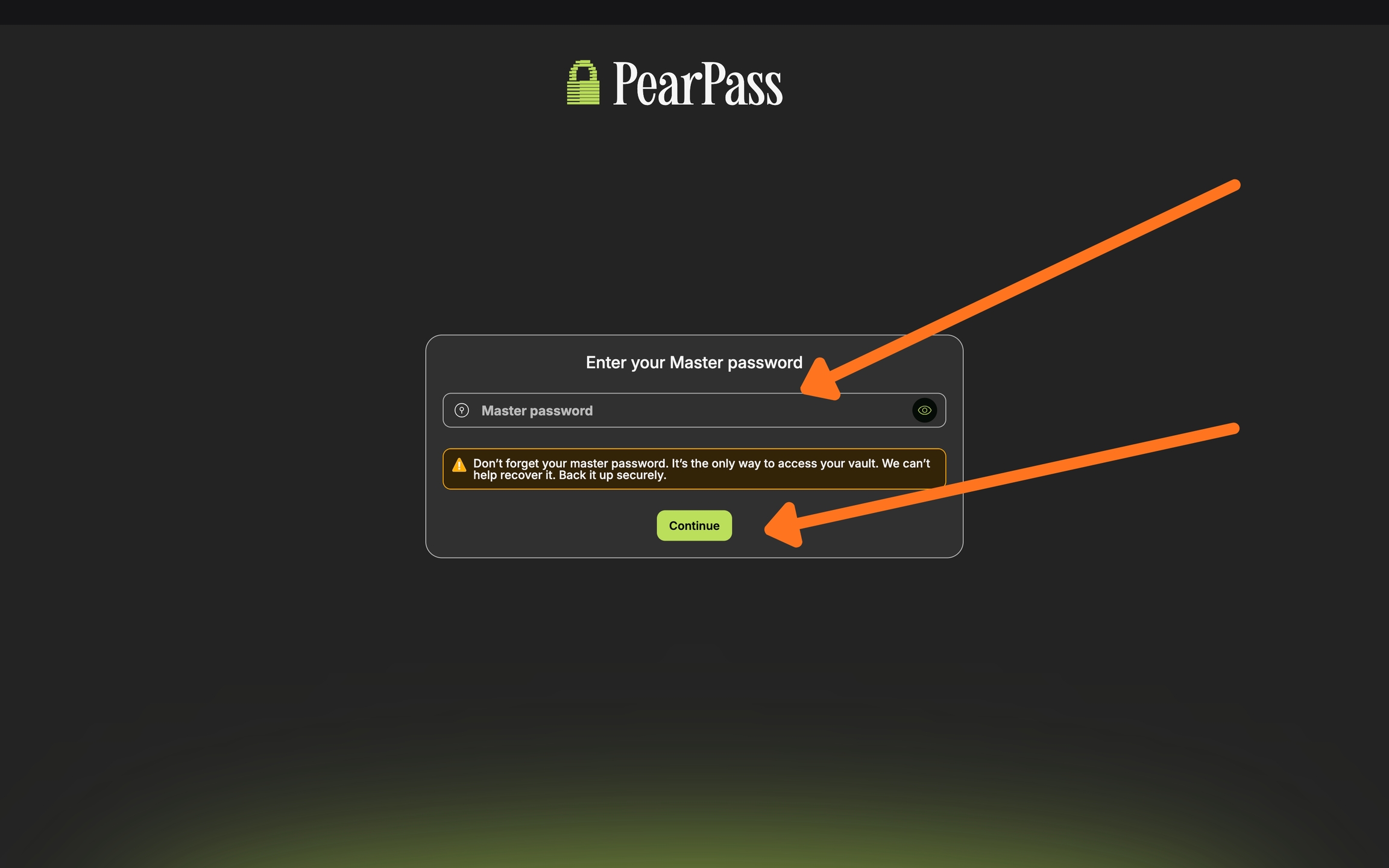
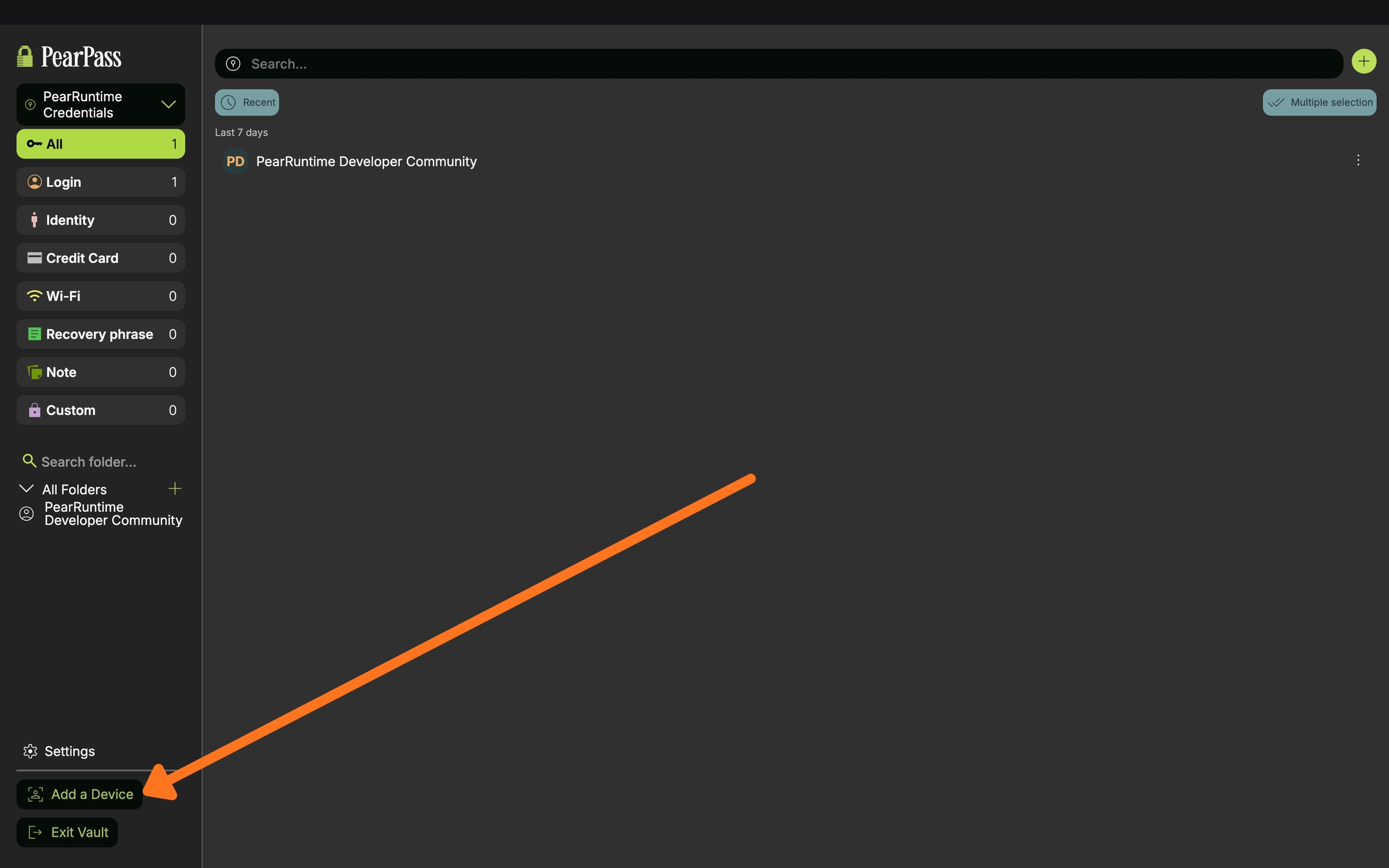
Select the Vault
Select the vault you want to sync to your other device. For this example, we'll use the PearRuntime Credentials vault.

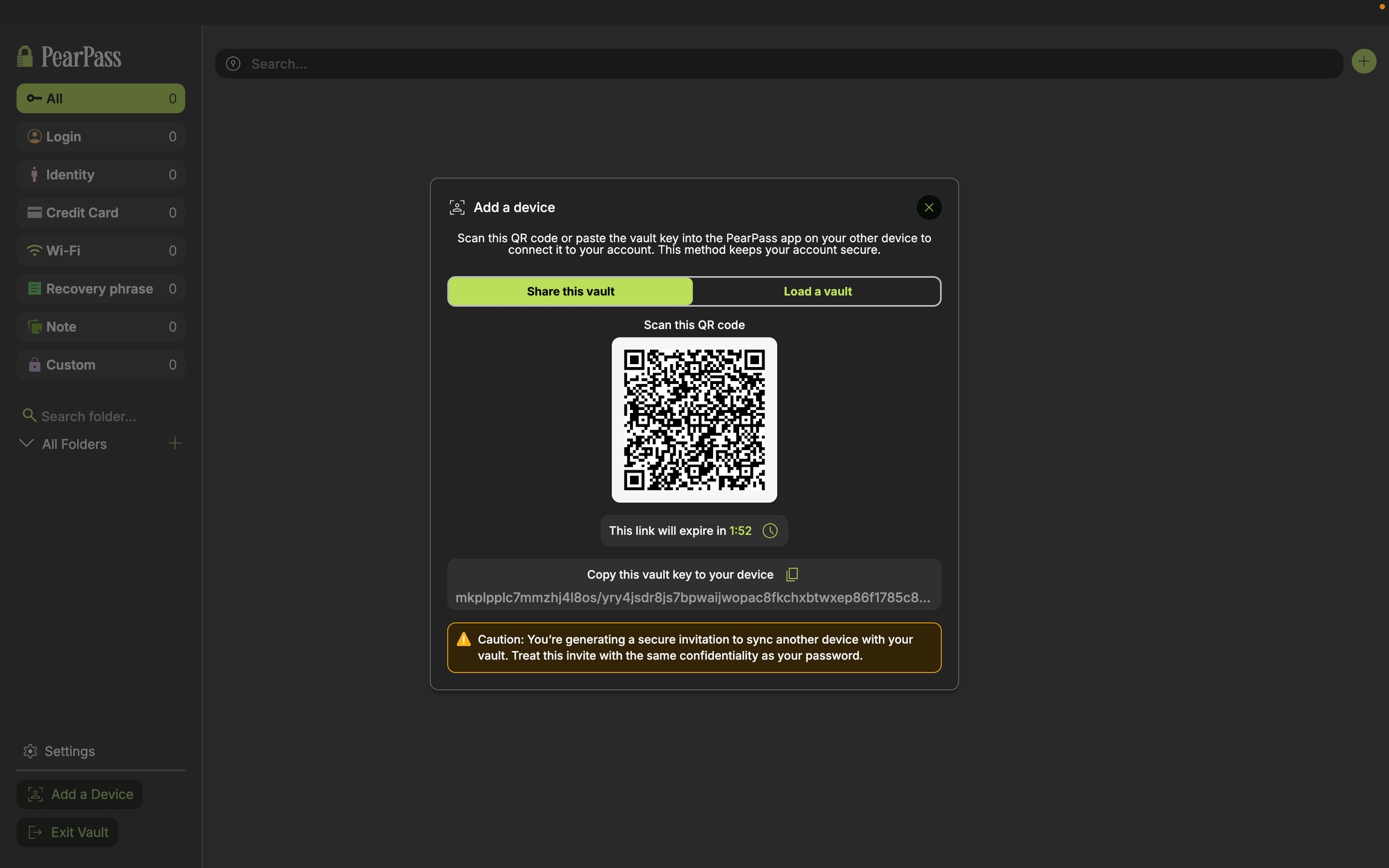
Syncing to Device 2 (Mobile)
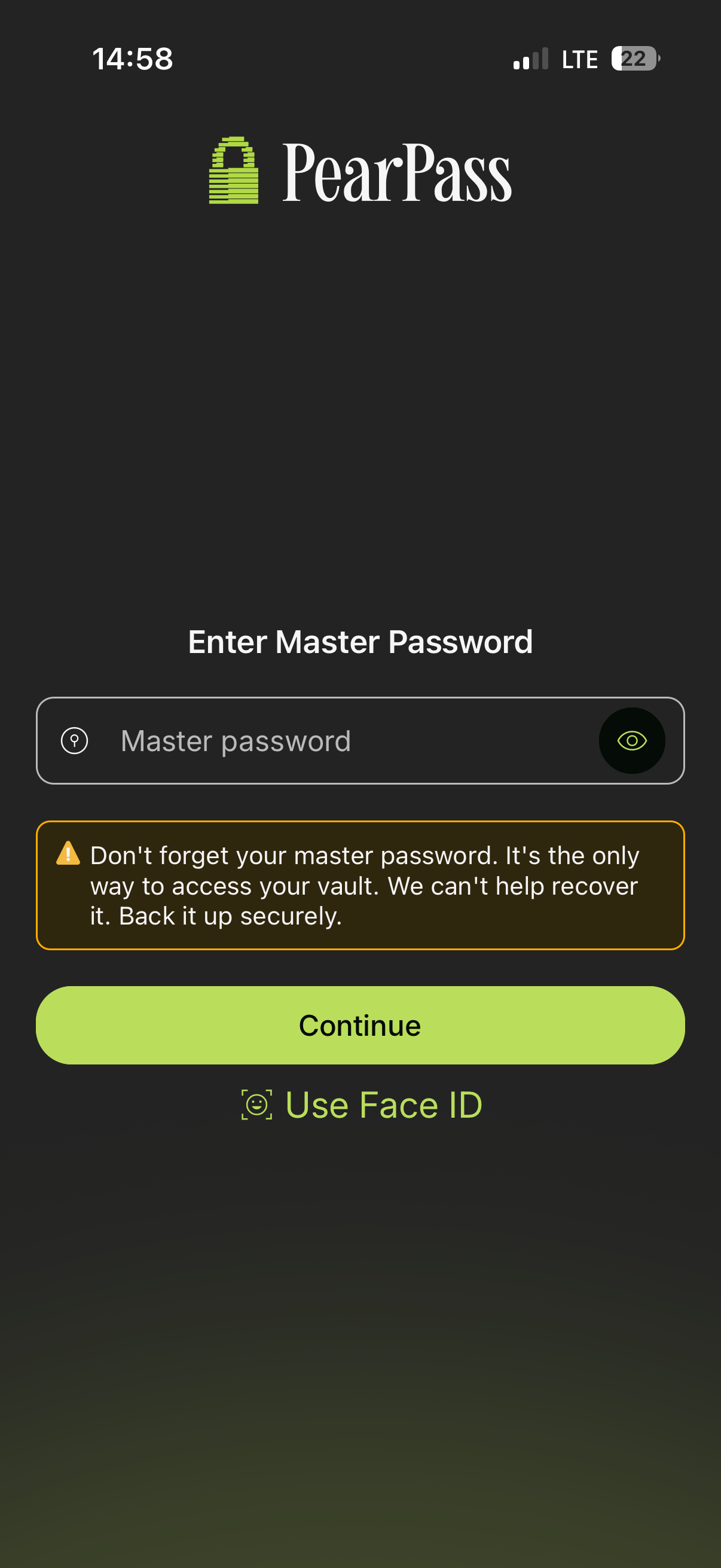
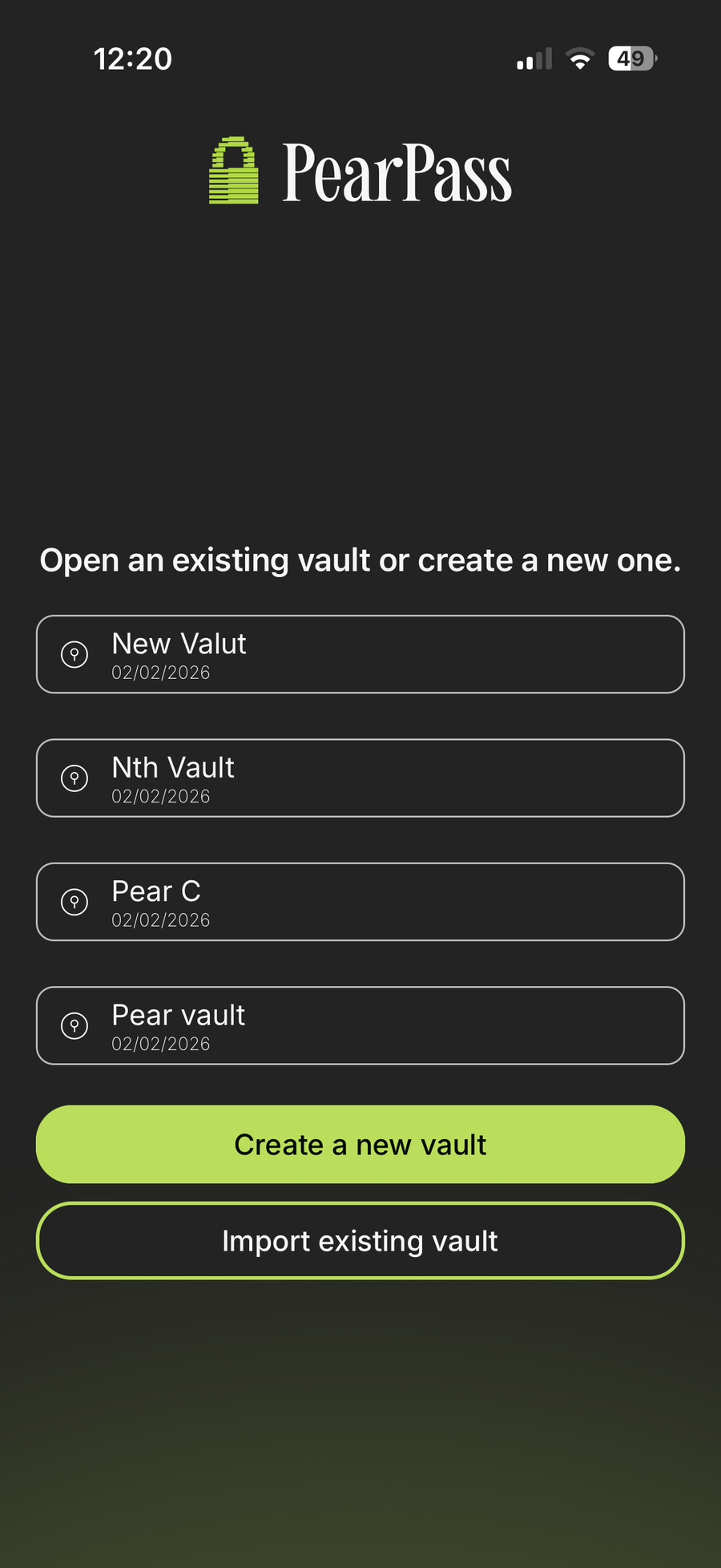
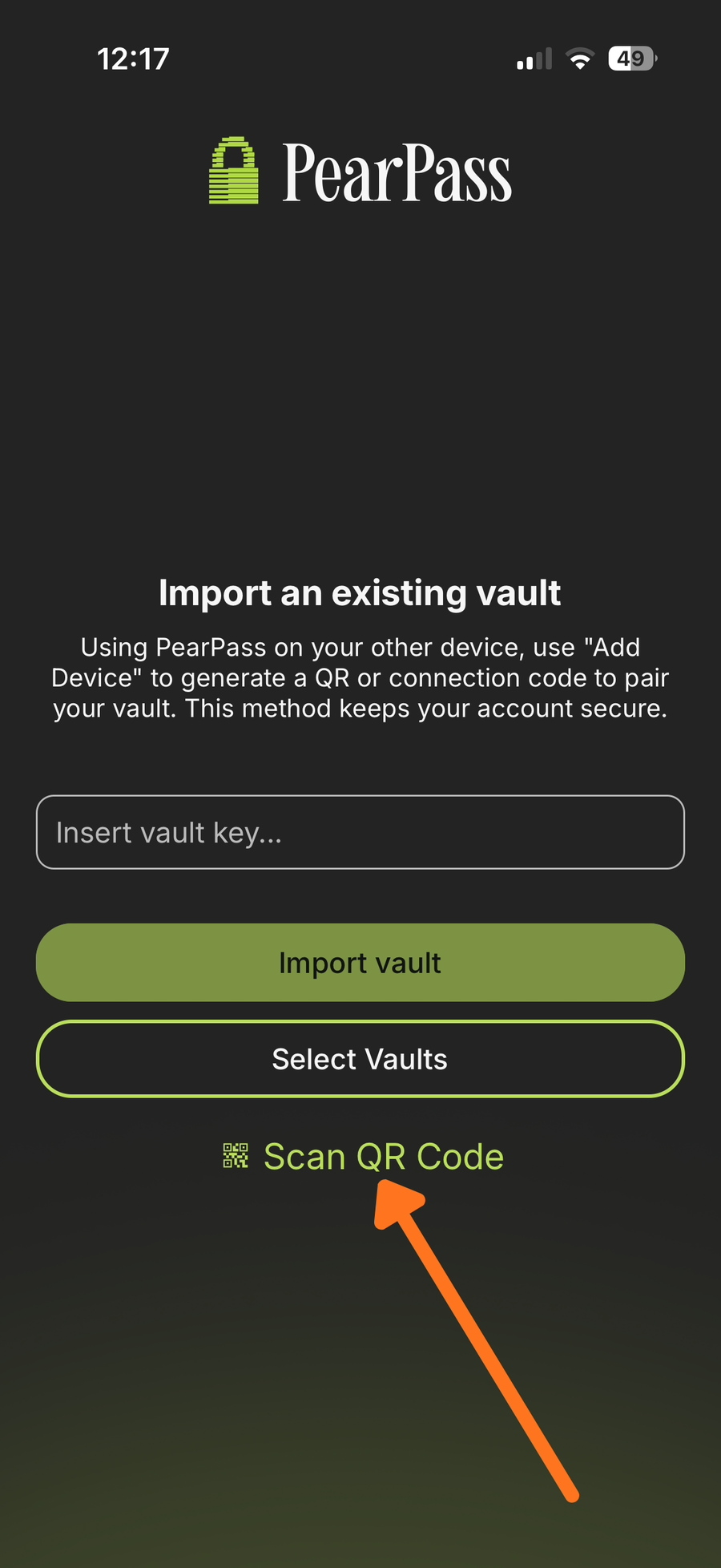
Your vault will sync securely between Device 1 and Device 2. Any changes made on one device will automatically update on the other.